Compliance work,
right in your AI chat
Ask, get a card, get it done in one click.
You ask your AI assistant in your own words. Complaica answers not just with text but with interactive cards from your instance: your open activities, where each standard stands, the risk matrix, the next audit question. Whatever you click in a card is saved to Complaica at once.
- 01Live data from your Complaica instance, not a copy
- 02Evaluate, move workflows on and answer audit questions with a click
- 03With your roles and permissions, every change under your name in the history
- 04One click on “Open in Complaica” takes you to the same object in the web app
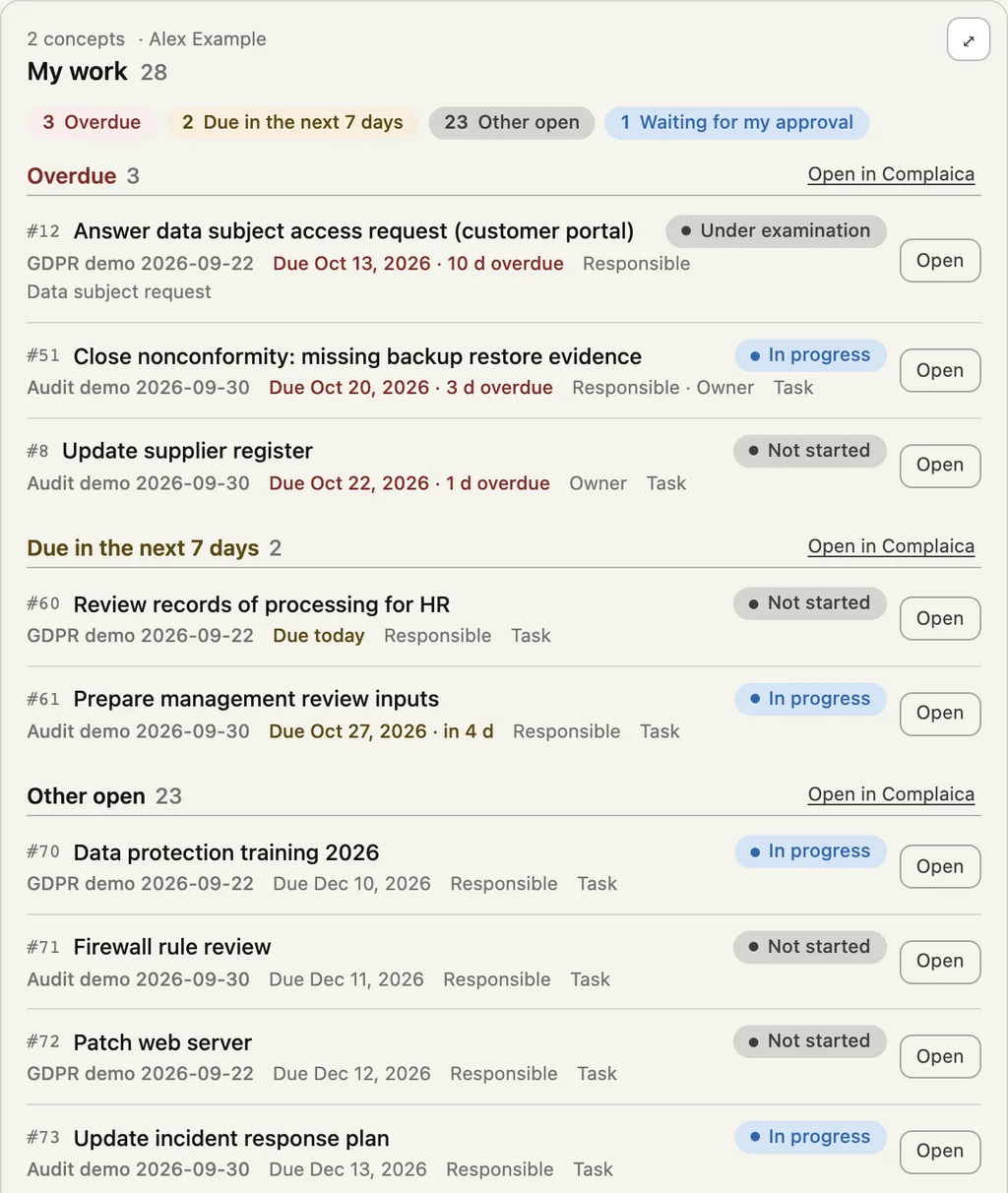
Your week in one card
The “My work” card gathers everything waiting for you across all concepts: what is overdue first, then what falls due in the next seven days, and the approvals waiting on you.
- 01Overdue, due soon and waiting for approval at a glance
- 02Status, due date and your role on every activity
- 03Every row opens the activity in Complaica
For everyone with activities: ISOs, DPOs, process and asset owners
Where you stand, in one answer
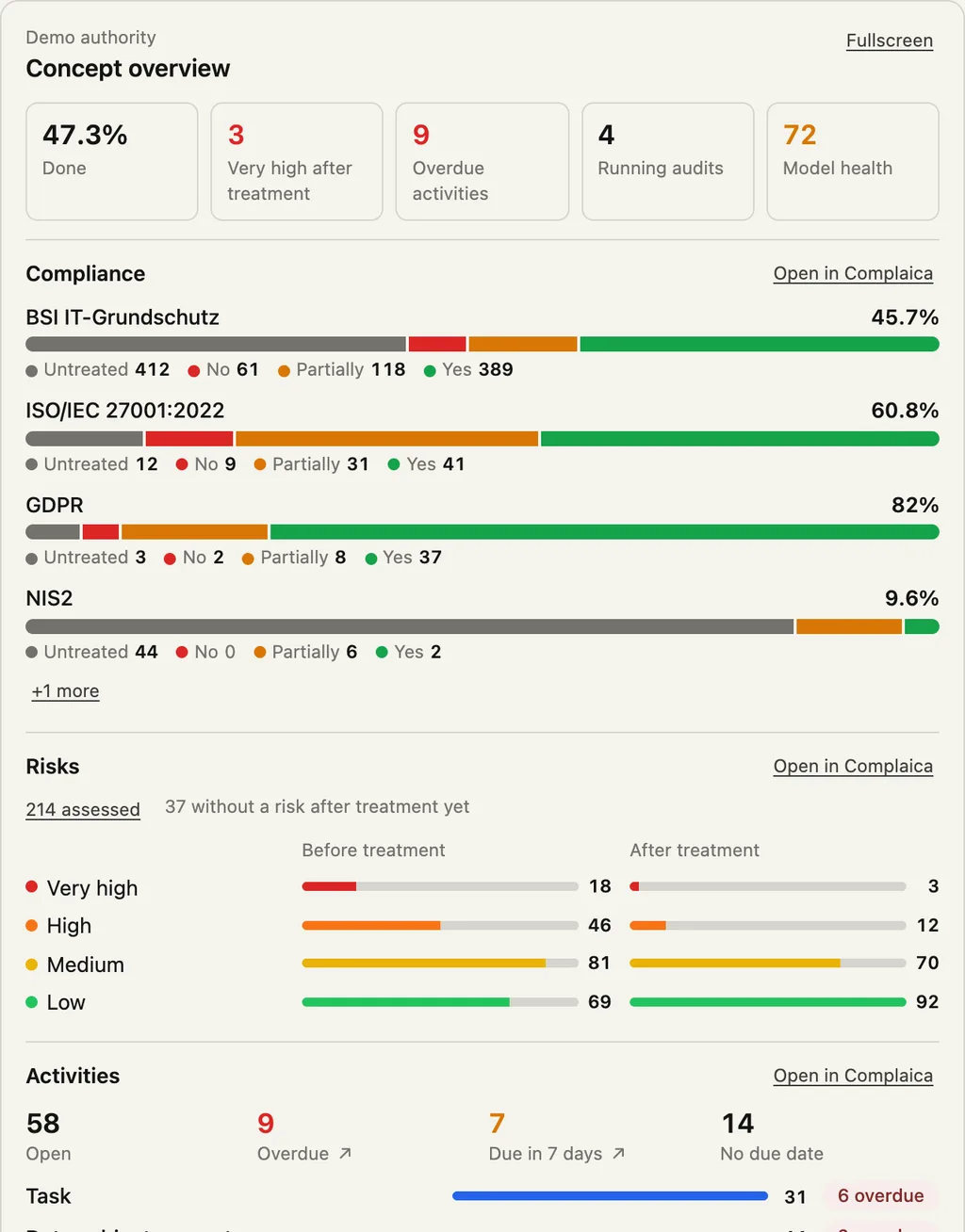
The concept overview shows compliance per standard, risks before and after treatment, open and overdue activities, running audits and model health. The material for the management meeting, without building a report.
- 01Compliance per standard with the spread of evaluations
- 02Risks by level, before and after treatment
- 03The assistant points out where the biggest gap is
For ISOs, DPOs, management
Evaluate requirements in one click
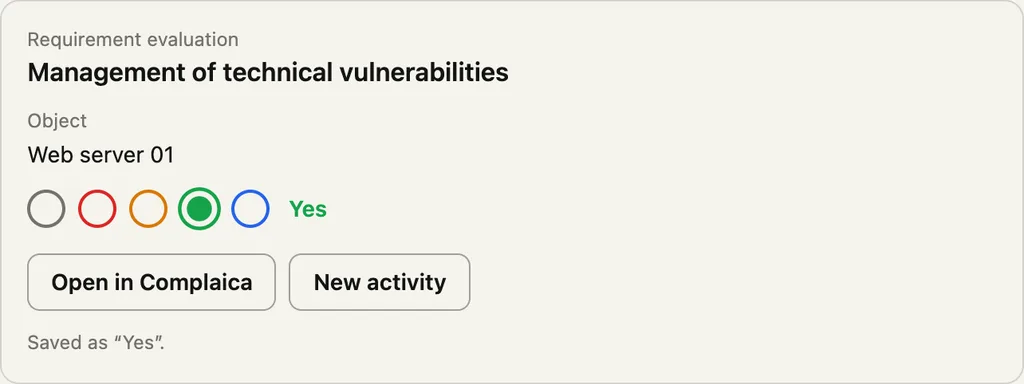
The assistant finds the requirement and the object and shows the evaluation card. A click on the state saves it to Complaica, exactly as in the web app. If you like, the assistant then creates an activity or attaches evidence.
- 01Set the state with a click: untreated, no, partially, yes, dispensable
- 02Saved under your name, visible in the history
- 03Straight on to an activity or into the web app
For ISOs, control owners, consultants
Risks on your matrix
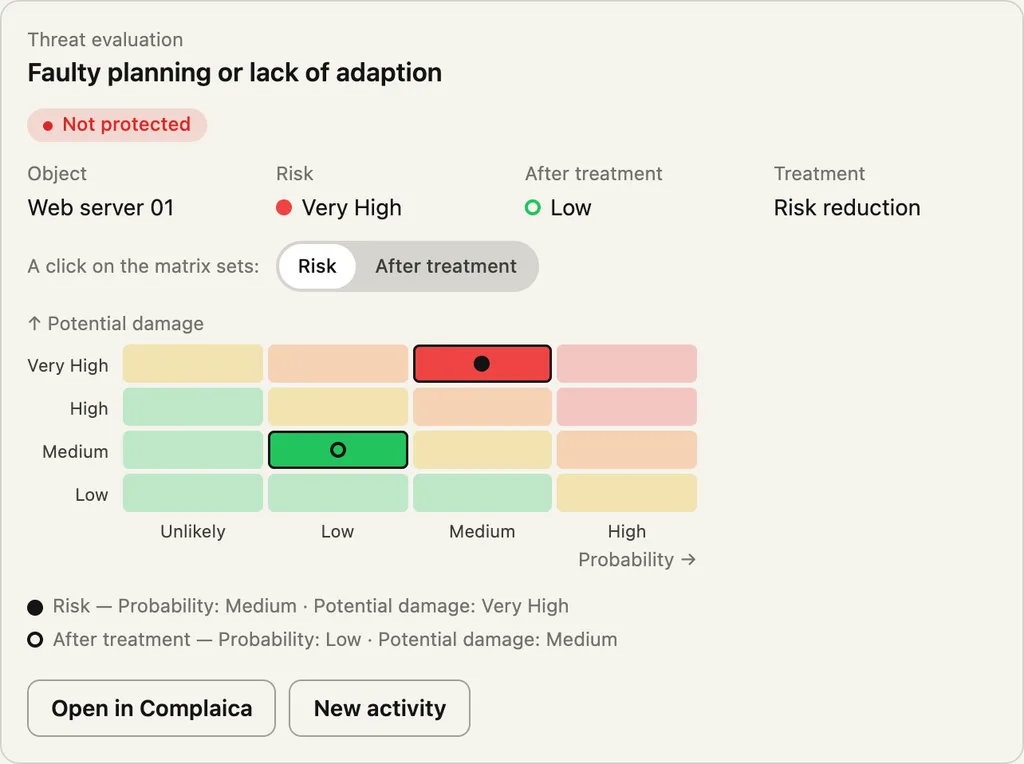
The threat card shows the risk on your concept’s risk matrix: before treatment and after, with probability, potential damage and the chosen treatment.
- 01The same matrix as in your concept, with your levels
- 02Risk before and after treatment side by side
- 03A new treatment activity straight from the card
For risk managers, ISOs
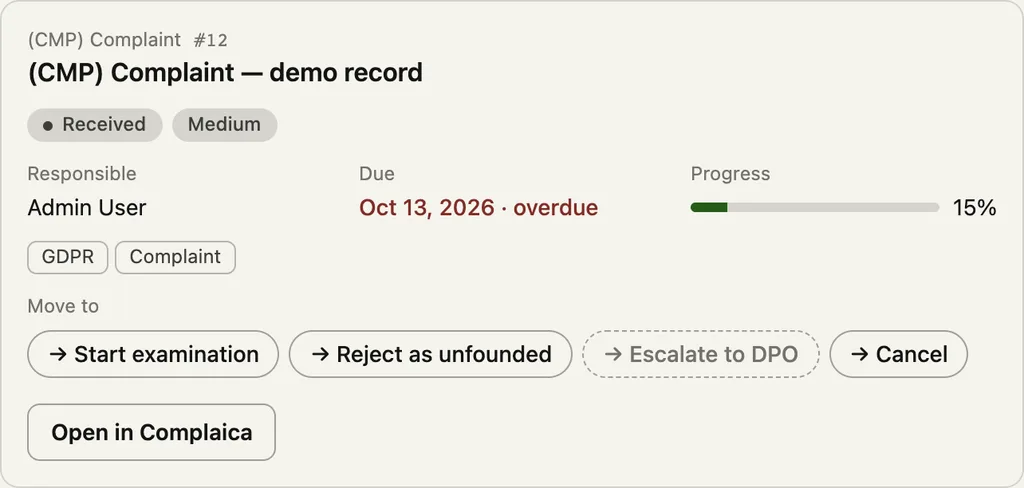
Move workflows on without leaving the conversation
Every activity, whether a complaint, a data subject request, a DPIA or a task, comes as a card with its owners, due date, progress and the transitions its workflow allows right now. A click moves it on.
- 01Only the transitions your role and the workflow allow
- 02Approve or reject, with a comment
- 03Due date and progress at a glance
For DPOs, people handling requests and incidents
Run audits as you ask
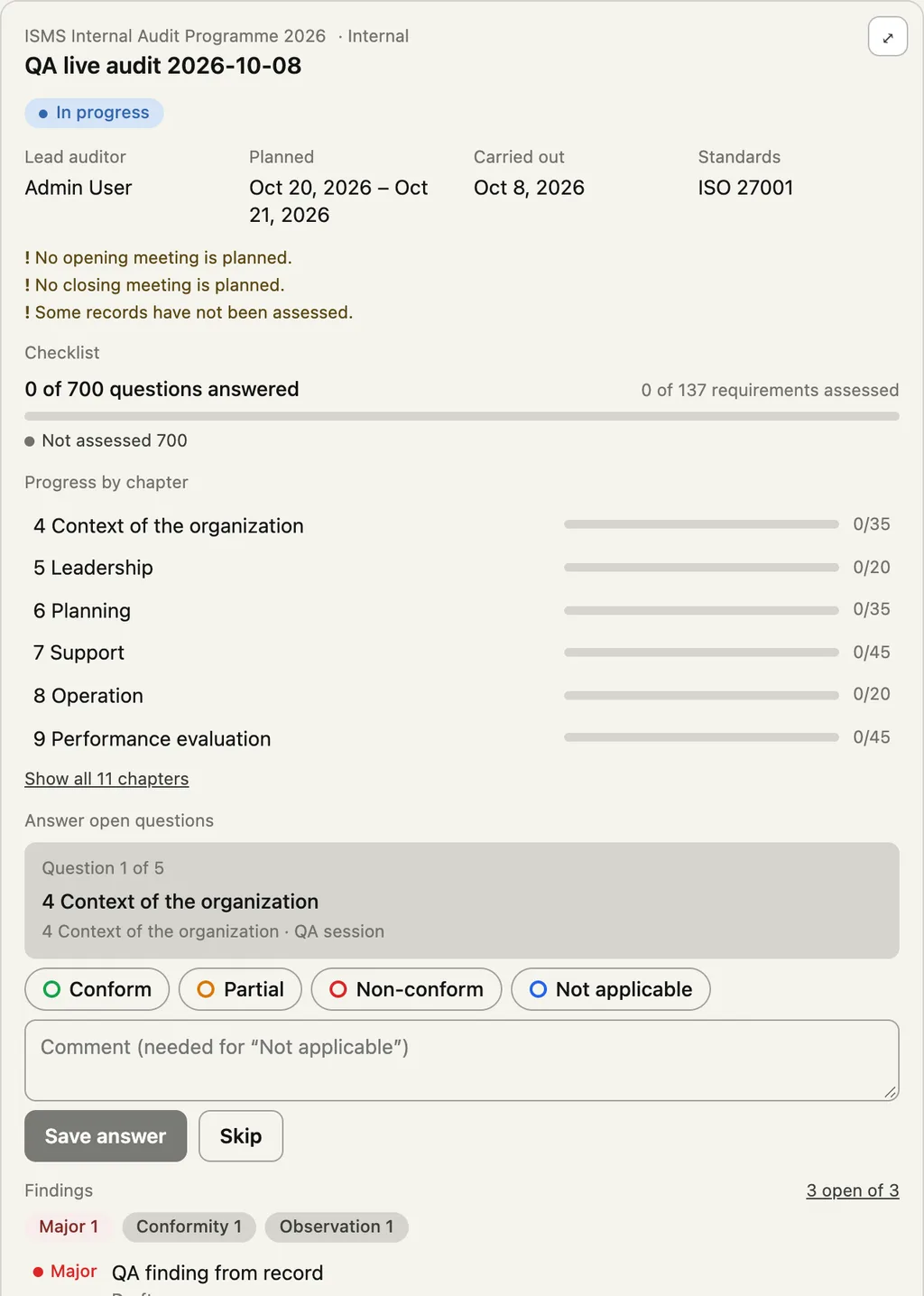
The audit card shows the plan, the standards and progress per chapter, and puts the next open question. You answer conform, partial, non-conform or not applicable, with a comment, and record findings.
- 01Answer the checklist question by question, saved in Complaica
- 02Progress per chapter and open findings
- 03Move the audit on in its workflow once fieldwork is done
For internal auditors, lead auditors
Analysis in your own words
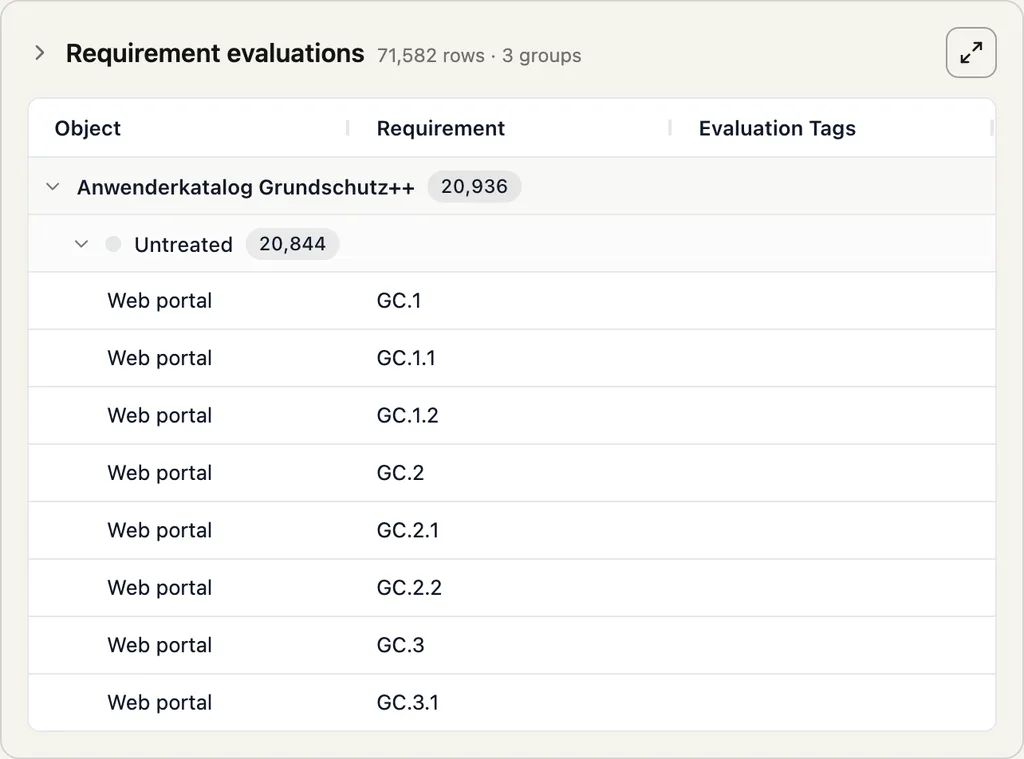
For questions no ready-made view answers, the assistant reads Complaica’s tables, groups and counts. The result comes as a table card you expand and open in Complaica.
- 01Grouping and counting across evaluations, objects, activities and links
- 02Even over hundreds of thousands of evaluations, computed in your instance
- 03The assistant sums up the result in sentences
For ISOs, consultants, controlling
How it works
The cards are part of the MCP server every Complaica instance comes with. There is nothing to install beyond the connector in your assistant.
MCP Apps
Complaica uses MCP Apps, the open extension of the Model Context Protocol for interactive interfaces. Assistants that support it, such as Claude on the web and in the desktop app, show the cards. Others get the same data as text.
Your data, your permissions
Every card reads live from your instance, with your sign-in, your roles and your licence. What you cannot see in the web app, the card does not show either.
A click is a click
A state, an answer or a transition in a card writes exactly what the same click in the web app writes, under your name and in the history.
You stay in control
The cards change only what you click. When the assistant wants to change something itself, most assistants ask you first.
Frequently asked questions
Which assistants show the cards?
Assistants that support MCP Apps, today above all Claude on the web and in the desktop app. ChatGPT, Cursor, VS Code and other MCP clients work with the same tools and show the results as text.
Do I need anything extra?
No. You connect your assistant once with your instance’s URL and sign in. The cards come with it. How to do that is on the [AI assistants](aiAssistants) page.
Does my AI provider see my compliance data?
The assistant processes what it reads under its provider’s terms. The cards themselves show data from your instance in your browser. Check that your organization’s AI policy allows compliance data.
Can the assistant change things without me?
Changes through the cards happen only when you click. When the assistant wants to change something itself, most assistants ask first, and your permissions apply as in the web app.
Does it work with our own standard and fields?
Yes. The cards show what is in your concept: your standards, your evaluation levels, your risk matrix, your workflows and fields.
See Complaica in the chat
We show you the cards in Claude on an example from your own work.
Takk.
Vi svarer innen én virkedag.
Ikke sendt.
Det gikk ikke. Sjekk feltene eller send oss en e-post direkte.